
In a world where distractions lurk around every corner, the last thing anyone needs is their Mac buzzing with messages like a caffeinated squirrel. If those constant notifications are driving you up the wall, it’s time to take control and disconnect those pesky messages. Imagine a serene workspace where focus reigns supreme, and the only sounds you hear are the gentle hum of your computer and your own brilliant thoughts.
Understanding Messages on Mac
Messages on a Mac serves as a central hub for communication. Users can send texts, photos, and videos through this app. It integrates seamlessly with iCloud, allowing synchronization across all Apple devices. Notifications arrive instantly, but constant alerts can overwhelm. Understanding the inner workings of this app helps in managing distractions effectively.
Overview of the Messages App
Messages App provides a platform for real-time chatting. Users can engage with individuals or groups. Features include sending stickers and GIFs, as well as initiating voice or video calls. Messages sync with SMS, creating a versatile messaging experience. Accessibility across platforms enhances user interaction.
Importance of Disconnecting Messages
Disconnecting Messages helps in fostering focus. Frequent notifications can lead to decreased productivity. By limiting distractions, users can enhance their workspace and bolster concentration. Setting boundaries around communication opens up time for deeper tasks. Prioritizing mental clarity enhances overall performance and satisfaction.
Steps to Disconnect Messages from Mac
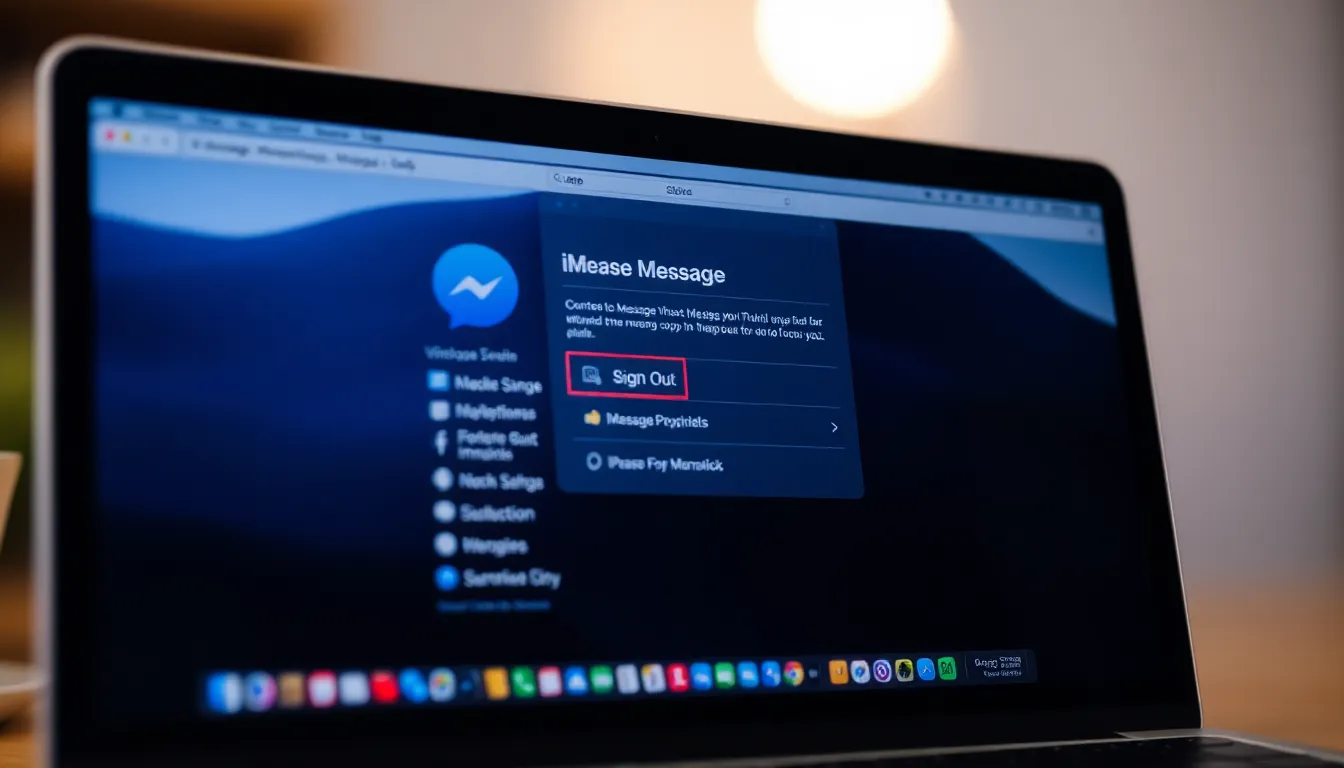
Disconnecting from Messages on a Mac enhances focus and reduces distractions. The following methods simplify this process.
Method 1: Sign Out of iMessage
Signing out of iMessage disconnects your Mac from the messaging platform. Open the Messages app, then navigate to the “Messages” menu in the top bar. Select “Preferences” and click on the “iMessage” tab. You’ll find a “Sign Out” button; click it. Confirm the sign-out action to ensure the account disconnects. This method stops notifications for new messages, allowing for uninterrupted work.
Method 2: Disable Messages in iCloud
Disabling Messages in iCloud prevents synchronization across devices. Access System Preferences by clicking on the Apple menu. Select your Apple ID, then navigate to “iCloud.” Locate “Messages” in the list of apps using iCloud, and uncheck it. This action stops messages from appearing on your Mac, ensuring you focus better without alerts.
Common Issues and Solutions
Disconnecting Messages on a Mac may lead to some common issues encountered by users. Addressing these problems promptly ensures a seamless experience.
Troubleshooting Connection Problems
Connection issues can arise when trying to disconnect from Messages. Users may experience trouble signing out or face error messages during the process. Restarting the Mac often helps resolve temporary glitches. Checking the internet connection stands essential, as a weak connection might interfere. Ensure that the operating system is up-to-date, as outdated software can create connectivity issues. Sometimes, users must sign out of iCloud on all devices to fully disconnect Messages. These steps often lead to a smoother disconnection experience.
Reconnecting Messages if Necessary
Reconnecting Messages on a Mac may become necessary when users wish to resume communication. Users can easily access Preferences within the Messages app to sign back into iMessage. Signing back in typically restores previous conversations and settings. In the event of syncing issues, checking iCloud settings is crucial. Ensure that Messages is enabled in the iCloud settings on all devices. Rebooting the Mac may also refresh the application. Following these steps allows for a seamless transition back to connecting Messages, ensuring communication remains uninterrupted.
Alternative Options
Some alternatives exist for managing or disconnecting from messages on a Mac. Exploring these options can enhance user control over their communication preferences.
Using Different Apple IDs
Utilizing multiple Apple IDs provides a way to isolate communication. By signing into a different Apple ID for iMessage on the Mac, users can separate their messages from their main account. This method helps reduce notifications while maintaining access to other Apple services. Switching between accounts can ensure that personal and work messages remain distinct, offering additional peace of mind while working.
Exploring Third-Party Messaging Apps
Choosing third-party messaging apps is another effective strategy. Numerous apps, such as WhatsApp, Signal, and Telegram, allow for seamless communication without relying on the Messages app. Users benefit from customizable notification settings and various features tailored to their preferences. Third-party options can help manage message volumes while providing an alternative means of staying connected, promoting an organized workflow without being overwhelmed by notifications.
Taking control of notifications on a Mac is essential for maintaining focus and productivity. By disconnecting from the Messages app, users can create a more serene workspace that fosters mental clarity. Whether signing out of iMessage or disabling Messages in iCloud, these methods empower individuals to manage their communication effectively.
Exploring alternative messaging options can further enhance this experience by allowing for tailored notification settings. Ultimately, prioritizing a distraction-free environment leads to improved performance and satisfaction in both personal and professional endeavors. Embracing these strategies can transform how one interacts with technology, paving the way for a more organized and fulfilling workflow.


